FM WhatsApp is one of the most popular modified versions of WhatsApp, offering extra privacy, themes, and customization that the official app does not provide. However, many users in 2026 are confused by the phrase “use FM WhatsApp Web on any browser,” since FM WhatsApp is actually an Android‑only mod and does not have its own dedicated web version like official WhatsApp Web. Despite that, you can still connect FM WhatsApp to a browser on your PC or laptop and use it in a way that feels similar to WhatsApp Web. This complete guide explains how to use FM WhatsApp Web on any browser (Chrome, Edge, Safari, Firefox, etc.) in 2026, in a simple, user‑friendly way.
What “FM WhatsApp Web” Actually Means
First, it is important to understand that there is no official FM WhatsApp Web portal like web.whatsapp.com. FM WhatsApp is built as a modified APK for Android, so it is designed to run on phones, not directly in a browser. Some websites and videos loosely call it “FM WhatsApp Web” when they actually mean:
- Using the official WhatsApp Web interface (web.whatsapp.com) and linking it to an FM WhatsApp‑installed Android phone.
- Or running FM WhatsApp on a computer via an Android emulator and then opening WhatsApp Web inside the emulator’s browser.
In both cases, you end up using FM WhatsApp’s features over a browser on any device in 2026, even though the mod itself does not run natively inside the browser.
Prerequisites Before Starting
Before you try “FM WhatsApp Web on any browser,” prepare these items:
- An Android phone with FM WhatsApp installed (download the latest FM WhatsApp APK from a trusted source).
- A computer (Windows or macOS) with a modern browser such as Chrome, Edge, Firefox, or Safari.
- A stable internet connection on both phone and computer.
- Optionally: an Android emulator (like BlueStacks or Nox) if you want to use FM WhatsApp directly on your PC without a phone in the loop.
Once you have these ready, you can start connecting FM WhatsApp to your browser.
Method 1: Connecting FM WhatsApp to Official WhatsApp Web (Any Browser)
This is the most common and simple way to use FM‑WhatsApp‑like features over a browser in 2026. It works with any desktop browser as long as your Android phone has FM WhatsApp installed.
Step 1: Install and Set Up FM WhatsApp on Your Phone
- Download the latest FM WhatsApp APK from a trusted website.
- On your phone, go to Settings > Security and enable “Install from unknown sources” or similar.
- Open the downloaded APK file and install FM WhatsApp.
- Open the app, verify your phone number, and restore your chats if needed.
Now your phone is running FM WhatsApp with all its extra privacy and customization options.
Step 2: Open WhatsApp Web on Any Browser
On your computer (Windows or macOS), follow these steps for any browser:
- Launch your preferred browser (Chrome, Edge, Firefox, Safari, etc.).
- In the address bar, type or search for web.whatsapp.com and press Enter.
- A large QR code will appear on the screen. This is the key to linking your phone to the web version.
Nothing unusual happens yet; the browser is just waiting for your phone to scan the code.
Step 3: Link FM WhatsApp to WhatsApp Web
FM WhatsApp is built on the core WhatsApp code, so it can usually connect to the same WhatsApp Web service.
On your Android phone:
- Open FM WhatsApp.
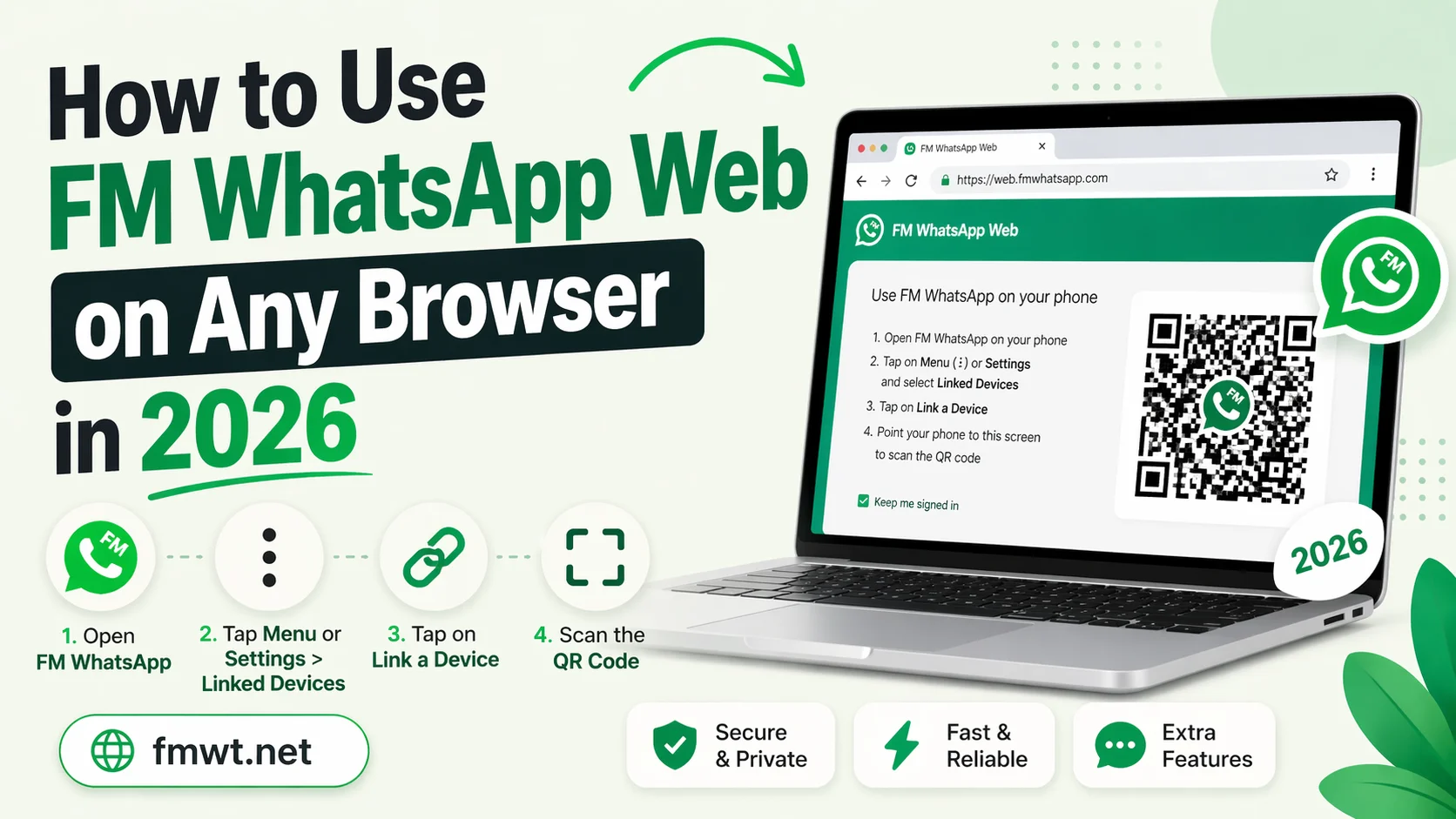
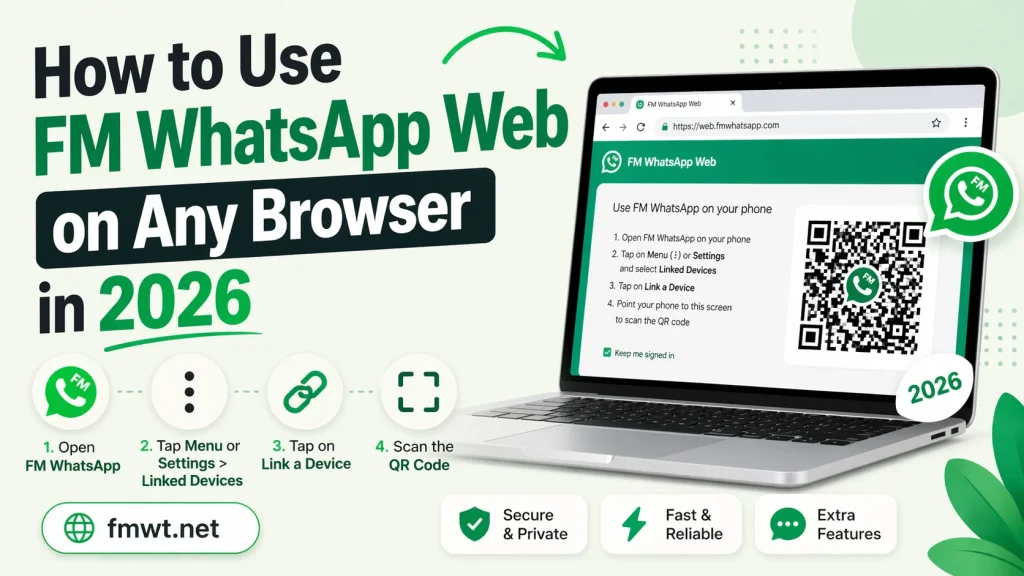
- Tap the three‑dot menu (More / Settings) and select Linked devices (or similar, depending on the FM WhatsApp version).
- Tap Link a device (or Link a computer).
- Point your phone’s camera at the QR code on your computer’s browser.
- Wait until the scan completes successfully.
Once linked:
- Your FM WhatsApp chats will appear in the browser.
- You can send and receive messages from any browser window that is open on your computer.
This setup effectively lets you use FM WhatsApp Web on any browser in 2026, even though the mod itself is still running on your Android phone.
Method 2: Using Android Emulator to Run FM WhatsApp on PC (Browser‑Style)
If you do not want to keep your phone always on, you can run FM WhatsApp directly on your PC using an Android emulator, then open WhatsApp Web inside the emulator’s browser. This gives you a more “web‑like” experience on your laptop or desktop.
Step 1: Install an Android Emulator
Choose a popular emulator such as BlueStacks, NoxPlayer, or LDPlayer and install it on your Windows or macOS PC.
Steps (general):
- Download the emulator installer from its official page.
- Run the installer and follow the setup wizard.
- Launch the emulator and sign in with a Google account (optional but useful).
Now you have an Android environment on your computer.
Step 2: Install FM WhatsApp Inside the Emulator
Inside the emulator:
- Open the built‑in browser (Chrome or similar).
- Go to a trusted site and download the FM WhatsApp APK.
- Once the download finishes, open the downloaded file and install FM WhatsApp just like on a real Android phone.
- Open FM WhatsApp, verify your phone number, and set up your account.
Now FM WhatsApp is running on your PC inside the emulator.
Step 3: Use WhatsApp Web Inside the Emulator Browser
From inside the emulator:
- Open the Android browser.
- Go to web.whatsapp.com and scan the QR code using the emulator’s FM WhatsApp app (often done via the emulator’s QR‑scan tool or by enabling the camera properly).
- Once linked, you can use FM‑WhatsApp‑powered chats inside the emulator’s browser, which feels like using “FM WhatsApp Web” on any browser.
This method is great if you mainly work on your laptop or desktop and want FM WhatsApp features without needing a physical Android phone nearby.
Browser Compatibility Tips for 2026
One of the advantages of this approach is that WhatsApp Web works on almost every modern browser. To use FM WhatsApp Web smoothly on any browser in 2026:
- Use Chrome, Edge, Firefox, or Safari; all are fully supported for WhatsApp Web.
- Keep your browser updated so it supports the latest security and performance features.
- Enable cookies and JavaScript, which WhatsApp Web requires to function.
- Avoid using very old or obscure browsers that may not handle the web interface well.
If you switch between browsers (for example, Chrome at work and Safari at home), you can repeat the QR‑scan process on each one and still access your FM‑WhatsApp‑linked chats.
Features You Get When Using FM WhatsApp with Web
When you connect FM WhatsApp to WhatsApp Web, you are not just using the basic web interface; you are using the enhanced FM WhatsApp account over the browser. This means you can enjoy:
- Extra privacy controls such as hiding online status, blue ticks, and typing indicators (depending on the FM WhatsApp version).
- Custom themes and chat styles visible when you open chats in the browser.
- App lock and chat lock on your phone or emulator, which protects your messages even if someone opens the browser on your PC.
- Better file‑sharing options and larger media limits compared to the stock WhatsApp app.
Note that these features are part of the FM WhatsApp app itself; the browser only mirrors what the app offers.
Safety and Limitations to Remember
While using FM WhatsApp Web on any browser is convenient, it comes with important safety notes and limitations in 2026:
- No official support: FM WhatsApp is a third‑party mod, not supported by Meta or WhatsApp.
- Account‑ban risk: WhatsApp may detect modified apps and temporarily or permanently ban accounts using them.
- Security concerns: Because FM WhatsApp is not verified like the official app, it can be more vulnerable to malware or data leaks if downloaded from untrusted sources.
- Connection stability: FM WhatsApp does not always link reliably to WhatsApp Web and may disconnect more often than the official app.
To stay safer:
- Download FM WhatsApp only from trusted, well‑known websites.
- Back up your chats regularly before using or updating the mod.
- Avoid entering highly sensitive information (such as passwords or banking details) inside FM WhatsApp.
Troubleshooting Common Issues in 2026
Sometimes “FM WhatsApp Web on any browser” does not work as expected. Common issues and quick fixes:
- QR code not scanning: Ensure your phone’s camera is clean and the QR code is fully visible. If the camera focus is bad, try a different camera app or increase the browser’s zoom.
- FM WhatsApp not showing in Linked devices: Make sure you are using a recent version of FM WhatsApp and that it is properly updated.
- Web session disconnects often: Restart both the phone/emulator and the browser, then re‑scan the QR code.
If your phone has low storage or poor internet, FM WhatsApp may behave unstable, which can also affect the WhatsApp Web connection.
Final Thoughts
Using FM WhatsApp Web on any browser in 2026 is a clever workaround, but it is not a true, dedicated “FM WhatsApp Web” service. It works indirectly by linking your FM WhatsApp‑installed device to the official WhatsApp Web interface, or by running FM WhatsApp inside an Android emulator on your PC.
For users who want:
- Extra privacy and customization on WhatsApp,
- The ability to chat from their laptop or desktop browser,
This method offers a practical solution. However, you should always weigh the extra features against the security and ban risks of using a modified app. If maximum safety is more important than extra themes and privacy tweaks, sticking with the official WhatsApp app and its native WhatsApp Web support is the better choice.
By following the steps above carefully and using trusted sources, you can safely use FM WhatsApp Web on any browser in 2026 and enjoy a more powerful WhatsApp experience on your computer.