
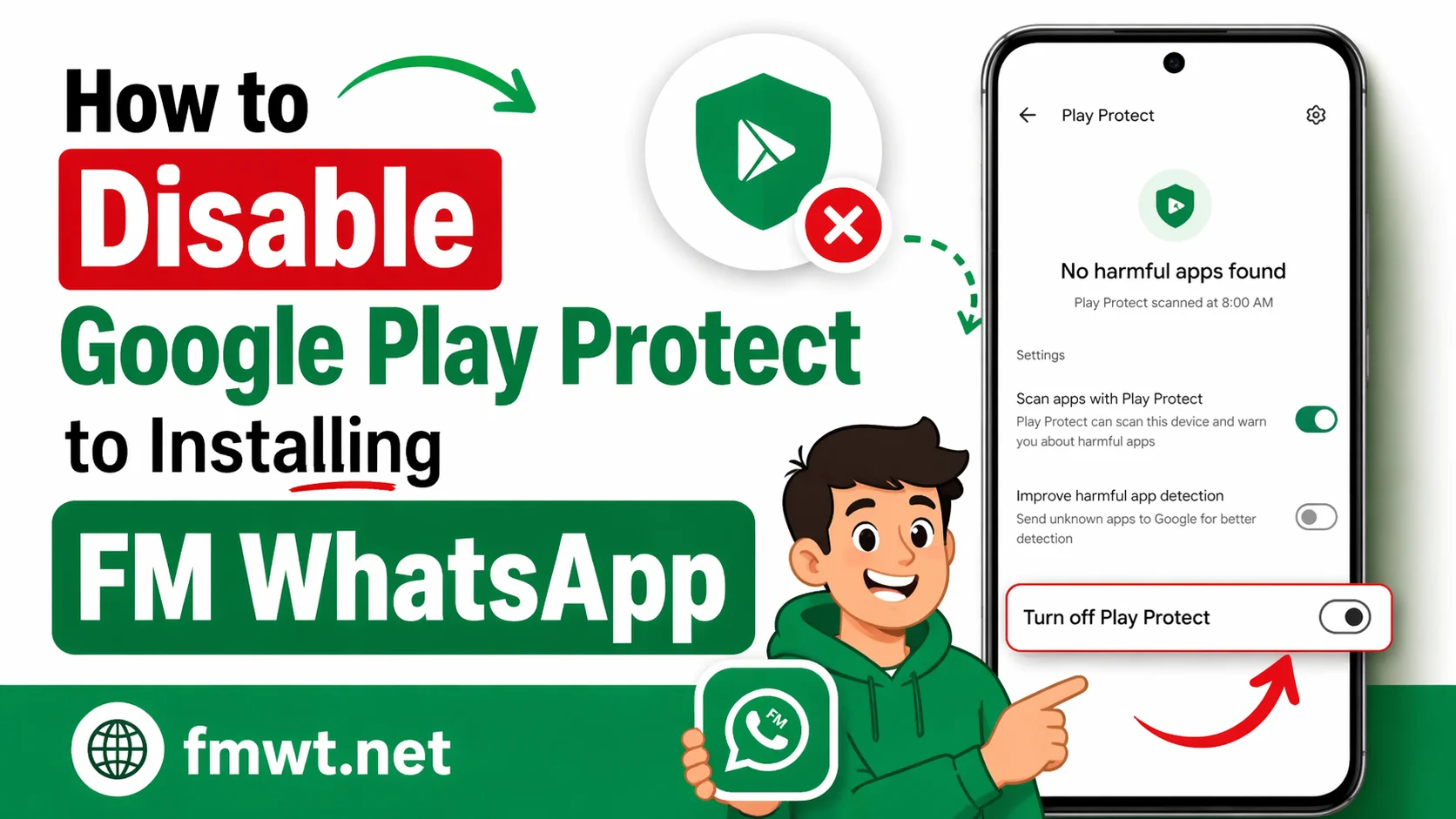
When installing FM WhatsApp, some users see warnings from Google Play Protect. This can stop the installation, scan the app, or show alerts that prevent the APK from being installed smoothly. If you are facing this issue, learning how to disable Google Play Protect for installing FM WhatsApp can help you proceed.
In this complete guide by FMWT.NET, you will learn what Google Play Protect is, why it blocks modified apps, how to turn it off temporarily, how to install FM WhatsApp after disabling it, and how to turn protection back on afterward.
This guide is written in simple language for beginners and covers each step clearly.
What Is Google Play Protect?
Google Play Protect is a built-in Android security feature.
It helps protect your device by:
- Scanning apps for harmful behavior
- Warning about risky apps
- Blocking suspicious APK installations
- Checking apps already installed on your phone
- Running security scans automatically in the background
It works on most Android devices connected to Google Play Services.
Even apps installed outside the Play Store can be scanned.
That is why users sometimes see Play Protect warnings while installing FM WhatsApp.
Why Does Google Play Protect Block FM WhatsApp?
FM WhatsApp is a modified version of WhatsApp.
Because it is not installed from the Google Play Store, Play Protect may flag it.
Common reasons include:
1. It Is a Third-Party APK
FM WhatsApp is usually installed through an APK file.
Play Protect often scans apps installed from unknown sources.
2. It Is a Modified Application
Modified apps may trigger warnings because they are altered versions of original apps.
3. Security Policy Restrictions
Android may treat unofficial apps more cautiously.
4. Automatic Protection Alerts
Sometimes Google Play Protect shows warnings even if users still choose to proceed.
Because of this, some users temporarily disable Play Protect during installation.
Should You Disable Google Play Protect Permanently?
No.
It is generally better to disable it only temporarily for installation.
Recommended process:
- Turn off Play Protect
- Install FM WhatsApp
- Turn Play Protect back on
This keeps your device protected after installation.
Before Disabling Google Play Protect
Do these things first.
Back Up Your Chats
If you are switching from another WhatsApp version:
- Back up chats
- Save media
- Protect important conversations
Use Latest FM WhatsApp Version
Older APK files may cause more issues.
Use the latest updated version.
Check Unknown Sources Permission
Before installation, Android may require permission to install APK files.
You may need to allow:
Install Unknown Apps
for your browser or file manager.
How to Disable Google Play Protect for Installing FM WhatsApp
Follow these steps carefully.
Step 1: Open Google Play Store
On your Android device:
- Open Play Store
- Wait for it to load fully
Step 2: Tap Your Profile Icon
Look in the top-right corner.
Tap your Google profile picture.
Step 3: Open Play Protect
From the menu, tap:
Play Protect
This opens security settings.
Step 4: Tap Settings Icon
Look for the settings gear icon.
Tap it.
Step 5: Turn Off Scan Apps With Play Protect
You may see options like:
- Scan apps with Play Protect
- Improve harmful app detection
Turn OFF:
Scan apps with Play Protect
Some devices may ask for confirmation.
Tap confirm.
Step 6: Disable Improve Harmful App Detection (Optional)
Some users also turn off:
Improve harmful app detection
This can reduce extra warnings during installation.
Step 7: Exit Settings
Play Protect is now temporarily disabled.
How to Install FM WhatsApp After Disabling Play Protect
Now install FM WhatsApp.
Step 1: Locate Downloaded APK
Open your Downloads folder.
Find FM WhatsApp APK.
Step 2: Tap APK File
Tap the installer file.
Step 3: Allow Unknown Sources If Asked
If Android shows:
Allow from this source
Turn permission ON.
Then return.
Step 4: Tap Install
Press:
Install
Wait for installation to finish.
Step 5: Open FM WhatsApp
Launch the app.
Complete setup:
- Verify number
- Restore backup
- Configure privacy settings
- Start using the app
How to Turn Google Play Protect Back On
After installing FM WhatsApp, turn protection back on.
Follow these steps:
- Open Play Store
- Tap Profile Icon
- Open Play Protect
- Tap Settings
- Turn ON Scan Apps with Play Protect
- Turn ON Improve Harmful App Detection if desired
Now your device has protection again.
This is the recommended approach.
Why Turning Play Protect Back On Matters
Some users leave it disabled.
That is not ideal.
Re-enable it because it can:
- Scan other apps
- Detect suspicious activity
- Improve device safety
- Help protect future downloads
Temporary disabling is safer than permanent disabling.
What If Play Protect Still Blocks Installation?
Sometimes warnings may still appear.
Try these fixes.
Fix 1: Retry Installation
Close installer.
Try again.
Sometimes the warning does not repeat.
Fix 2: Restart Phone
A reboot can clear temporary issues.
Restart and try again.
Fix 3: Recheck Play Protect Is Actually Off
Sometimes users forget the setting did not save.
Verify:
Scan Apps with Play Protect = Off
Fix 4: Recheck Unknown Sources Permission
Go to:
Settings
Security
Install Unknown Apps
Ensure permission is enabled.
Fix 5: Use Updated FM WhatsApp APK
Older versions may trigger more alerts.
Use latest version.
Common Google Play Protect Warning Messages
Users may see messages like:
- App may be harmful
- Blocked by Play Protect
- Unsafe app detected
- Installation blocked
- This app may put your device at risk
These warnings often relate to APK source or app type.
Does Disabling Play Protect Delete Apps?
No.
Turning it off does not remove apps.
It does not erase:
- Photos
- Chats
- Contacts
- Messages
- Installed applications
It only disables security scanning temporarily.
Does It Affect Google Play Store?
No.
Play Store still works.
You can still:
- Update apps
- Download apps
- Browse Play Store
Only Play Protect scanning changes.
Difference Between Play Protect and Unknown Sources
Many users confuse these.
They are different.
Google Play Protect
Scans apps for security concerns.
Unknown Sources Permission
Allows APK installation from outside Play Store.
You may need both configured for FM WhatsApp.
Can I Install FM WhatsApp Without Disabling Play Protect?
Sometimes yes.
Some users simply tap:
Install Anyway
if warning allows.
But if installation is blocked, temporary disabling may help.
Is It Safe to Disable Google Play Protect?
Temporarily for installation, many users choose this method.
But best practice is:
Disable only during install
Turn it back on immediately after
That reduces risk.
Android Versions May Look Different
Settings may vary slightly by device.
Examples:
Samsung
Xiaomi
Oppo
Vivo
Realme
OnePlus
Pixel
Menu names may change, but steps are similar.
Look for:
Play Protect
Security Scan
Scan Apps
How to Disable Play Protect on Samsung
Usually:
Open Play Store
Tap Profile
Open Play Protect
Tap Settings
Disable scanning
Same general process.
How to Disable Play Protect on Xiaomi
Usually similar:
Play Store
Profile
Play Protect
Settings
Turn off scanning
Some MIUI versions may add extra security prompts.
How to Disable Play Protect on Oppo and Vivo
Again similar steps.
You may also check:
Phone Security App
for extra restrictions.
Additional Settings That May Block FM WhatsApp
Sometimes Play Protect is not the only issue.
These can interfere too.
Battery Restrictions
Aggressive battery settings can affect app behavior.
Whitelist FM WhatsApp if needed.
Background Restrictions
Allow background activity.
Auto Optimization
Disable optimization if notifications fail later.
App Permissions
Grant:
Storage
Contacts
Notifications
Microphone
as needed.
Benefits of Installing FM WhatsApp After Disabling Play Protect
Users often do this to access features like:
- Hide blue ticks
- Freeze last seen
- Custom themes
- Anti-delete messages
- Advanced privacy controls
- Media sharing options
Installation is the first step.
Mistakes to Avoid
Avoid these common errors.
Leaving Play Protect Disabled Forever
Turn it back on.
Forgetting Chat Backup
Always back up first.
Installing Old APK Versions
Use updated versions.
Ignoring Unknown Sources Permission
Play Protect off alone may not solve installation.
Disabling the Wrong Setting
Make sure you turn off:
Scan Apps with Play Protect
not unrelated security options.
Troubleshooting FM WhatsApp Not Installing
If install still fails:
Check storage space.
Low storage can stop installation.
Remove older conflicting version if needed.
Restart device.
Download APK again if file is corrupted.
Try clean install after backup.
Can Play Protect Remove FM WhatsApp Later?
Some users worry about this.
In some cases Play Protect may later warn about installed apps.
If it flags something, review the alert carefully.
Keeping latest updated FM WhatsApp may help reduce issues.
How Often Should You Disable Play Protect?
Only when necessary.
Not regularly.
Use it only if installation is blocked.
Best Practice for Safer Installation
Recommended flow:
Backup chats
Use latest FM WhatsApp APK
Disable Play Protect temporarily
Install app
Verify setup
Re-enable Play Protect
Check permissions
Test app functions
This is the safest workflow.
Frequently Asked Questions
What is Google Play Protect?
It is Android’s built-in app security scanner.
Why does it block FM WhatsApp?
Because FM WhatsApp is a third-party modified APK.
Can I turn Play Protect off temporarily?
Yes.
Many users do that for installation.
Should I turn it back on?
Yes.
That is recommended.
Does disabling Play Protect delete data?
No.
It only stops app scanning.
Can I install FM WhatsApp without turning it off?
Sometimes yes.
If blocked, temporary disabling may help.
Does every Android phone have Play Protect?
Most Android phones with Google Play Services do.
What if my menu looks different?
Search for:
Play Protect
Security Scan
Scan Apps
Names can vary.
Final Thoughts
Learning how to disable Google Play Protect to installing FM WhatsApp can solve one of the most common installation problems users face.
If Google Play Protect blocks the APK, the usual process is simple:
- Open Play Protect
- Disable scanning temporarily
- Install FM WhatsApp
- Re-enable protection afterward
That gives you access to installation while keeping device security in place.
Remember:
Do not leave Play Protect disabled permanently.
Use it only when needed.
For most users, temporary disabling plus turning it back on after installation is the best method.
If you follow the steps in this guide from FMWT.NET, you should be able to install FM WhatsApp smoothly and avoid common errors.